

How to Reset Tuya App WiFi Smart Door Lock When Forgotten Password
2026-04-22
Forgetting the password to your Tuya App WiFi Smart Door Lock can be frustrating, especially when you need immediate access to your property. Paramey, a trusted name in smart security solutions, offers a straightforward reset process for such scenarios. This guide walks you through the step-by-step method to reset your lock, restore administrative control, and secure your device again without losing core functionality.
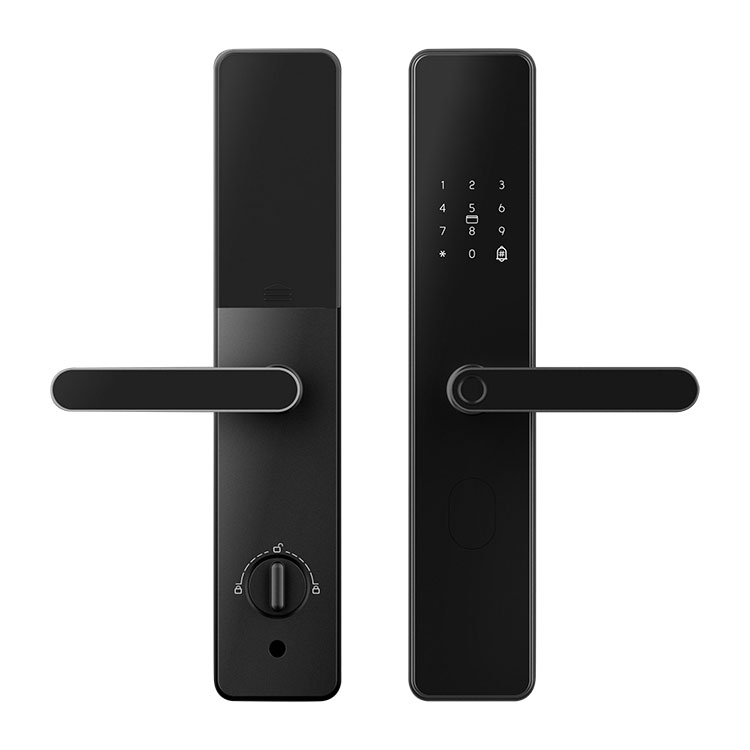
Step-by-Step Reset Procedure
| Step | Action | Details |
|---|---|---|
| 1 | Locate the reset button | Usually found on the interior panel or near the battery compartment of your Paramey lock |
| 2 | Press and hold | Use a pin or paperclip for 5–10 seconds until you hear a long beep |
| 3 | Remove batteries | Take out all batteries for 30 seconds to clear temporary memory |
| 4 | Reinsert batteries | Put batteries back and wait for the voice prompt or LED flash |
| 5 | Open Tuya App | Tap “Add Device” and scan the QR code on the lock or manual |
| 6 | Create new admin password | Follow in-app instructions to set a fresh password |
Note: Factory reset erases all user codes and fingerprints. Only perform this if you cannot retrieve the original password via the “Forgot Password” option in the Tuya App.
Why Choose Paramey for Your Smart Lock Needs
Paramey integrates seamlessly with the Tuya App WiFi Smart Door Lock ecosystem, offering robust encryption, real-time alerts, and remote access recovery options. Unlike generic brands, Paramey locks include a physical override key and a dedicated reset procedure that prevents unauthorized resets.
Tuya App WiFi Smart Door Lock FAQ – Common Questions
Q1: Will resetting my Tuya App WiFi Smart Door Lock remove all existing user fingerprints and codes?
A1: Yes. A full factory reset through the physical reset button erases all stored credentials, including fingerprints, numeric codes, and RFID card data. The lock reverts to its original out-of-box state, meaning only the admin can set up new users after re-pairing the device with the Tuya App. This is designed to protect your security in case the lock is compromised or the password is permanently lost. For Paramey models, the reset also clears temporary Wi-Fi configurations, so you must reconnect the lock to your home network during the setup process.
Q2: What should I do if the reset button on my Paramey lock does not respond?
A2: First, ensure the batteries are fresh and properly installed. Low power can prevent the reset button from triggering. If the issue persists, remove the batteries for 60 seconds, reinstall them, and attempt the reset again within 30 seconds of powering on. For Paramey smart locks, you can also try holding the reset button while reinserting the batteries. Should none of these steps work, use the physical key override to open the door, then contact Paramey support for a firmware recovery tool. Do not force the button or disassemble the lock yourself, as this may void the warranty.
Q3: After resetting my Tuya App WiFi Smart Door Lock, will I lose access to activity logs and automation rules?
A3: Absolutely. A factory reset deletes all historical access records, including timestamps of who unlocked the door and any failed attempts. Automation rules created inside the Tuya App — such as auto-lock timers or scene integrations with lights — are also removed because the lock’s device ID is effectively re-registered as a new accessory. To preserve logs, export them from the Tuya App before resetting, or use the cloud backup feature if your Paramey model supports it. After resetting, you must recreate automation rules and re-invite family members to share access.
Best Practices After Reset
-
Change the default admin password immediately
-
Enable two-factor authentication inside the Tuya App
-
Update firmware on your Paramey lock to the latest version
-
Test the new password multiple times before closing the door
Contact Us for Professional Assistance
If you continue experiencing issues with resetting your Tuya App WiFi Smart Door Lock, or if your Paramey device shows error lights after multiple attempts, reach out to our certified support team. Visit the Paramey official website and use the live chat or email form under the “Support” section. Provide your lock model number and a brief description of the reset behavior for faster troubleshooting. We are available Monday through Saturday to help you regain secure access to your smart lock.